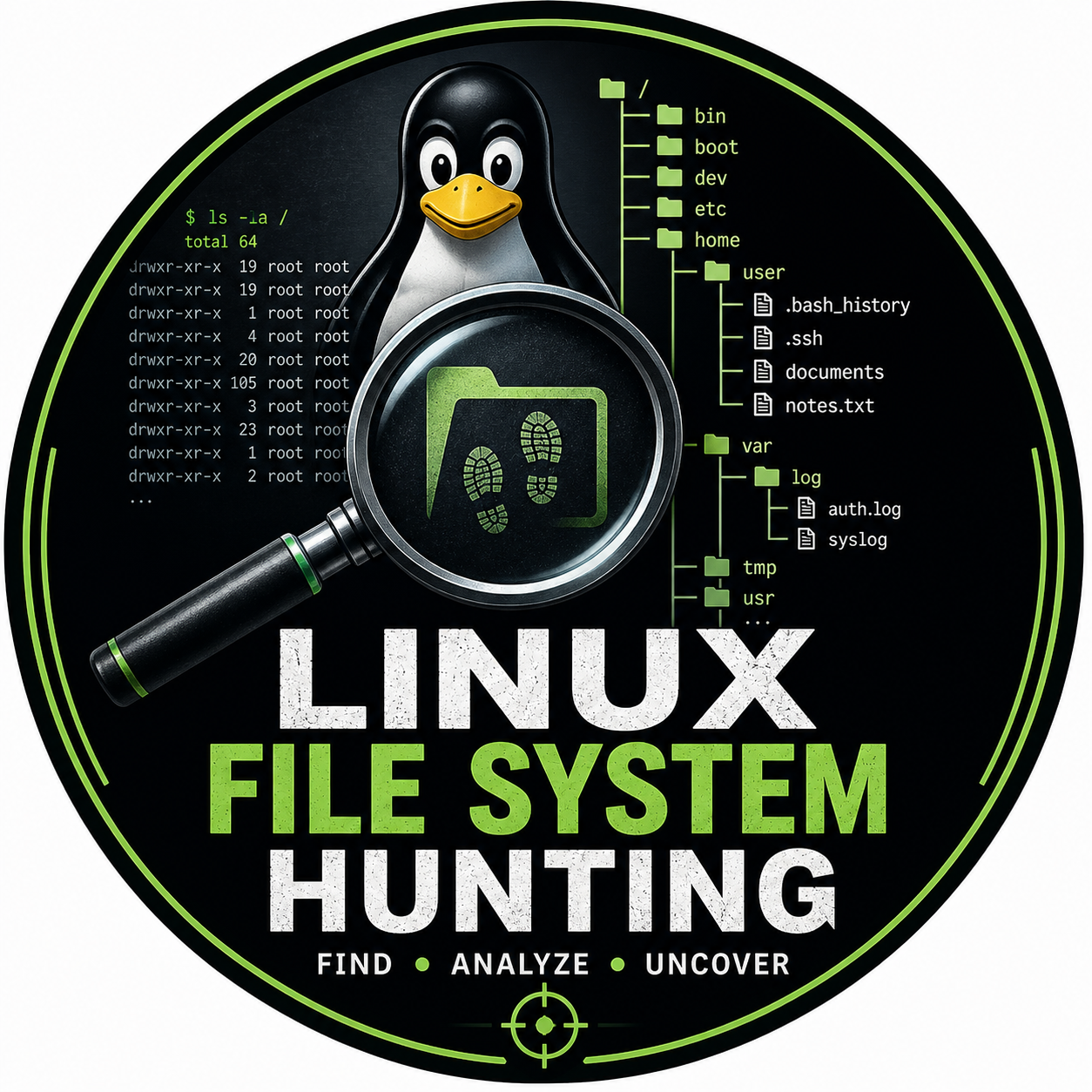
Linux File System Hunting
Deep Diving into the commands of Linux File System

When most of the time when we interact with Linux, we just go through some basic commands, scripts, or package manager. But I wanted to understand something deeper: how Linux actually organizes and controls the system under the hood.
Instead of practicing commands, I explored critical directories, configuration files, virtual file systems, networking data, logs, permissions, and process internals.
What I discovered changed how I view Linux—not as an operating system with commands, but as a system where almost everything is represented as a file.
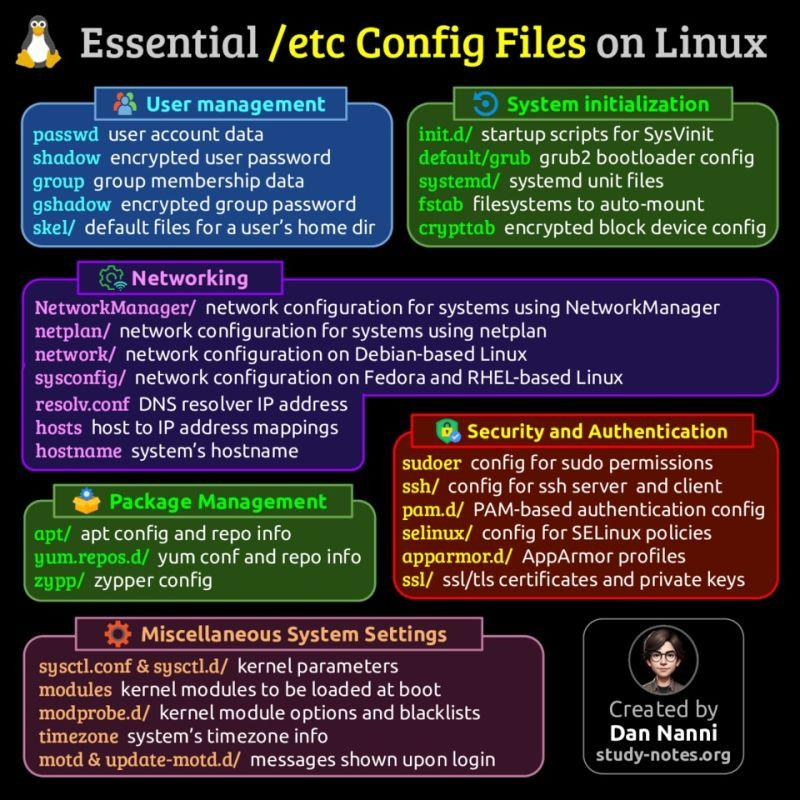
1. /etc - The control flow of Linux
In Linux, /etc directory is the control flow of world wide configuration files. This directory consist settings of Operating System that controls how different application behaves.
Common Files and Directories
The filesystem has its old Standard outlines. various critical files are found in the /etc
/etc/passwd- In this directory user account information (usernames, ID, home directories)/etc/shadow- Passwords are most critical things so this directory has encrypted passwords. reason is to store passwords here because it is more secure than/etc/passwd./etc/fstb- Lists disk drives and their partitions, these are automatically stored at the time of startup./etc/hosts- It Maps IP address to hostnames locally
It exist because: DNS depends on external servers or network infrastructure. Sometimes you need name resolution even when:
DNS is unavailable :
You’re testing a website before it goes live
You want to override public DNS
Internal systems aren’t publicly registered
So, /etc/hosts gives a instant local hostname without contacting the internet. /etc/hosts get checked before DNS and if you map 1.2.3.4 google.com now your system may try to open google at 1.2.3.4 instead of real google server.
5. /etc/resolv.conf - How Linux finds websites (It configures DNS server addresses).
Humans remember domain names, not IP addresses. Linux needs DNS servers to translate names into addresses. Without DNS resolution, every internet connection would require manual IP addresses.
2. /proc — Processes That Exist as Files
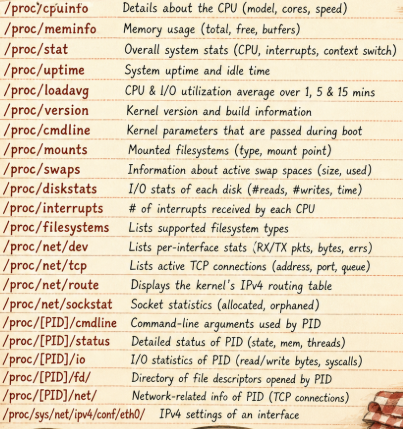
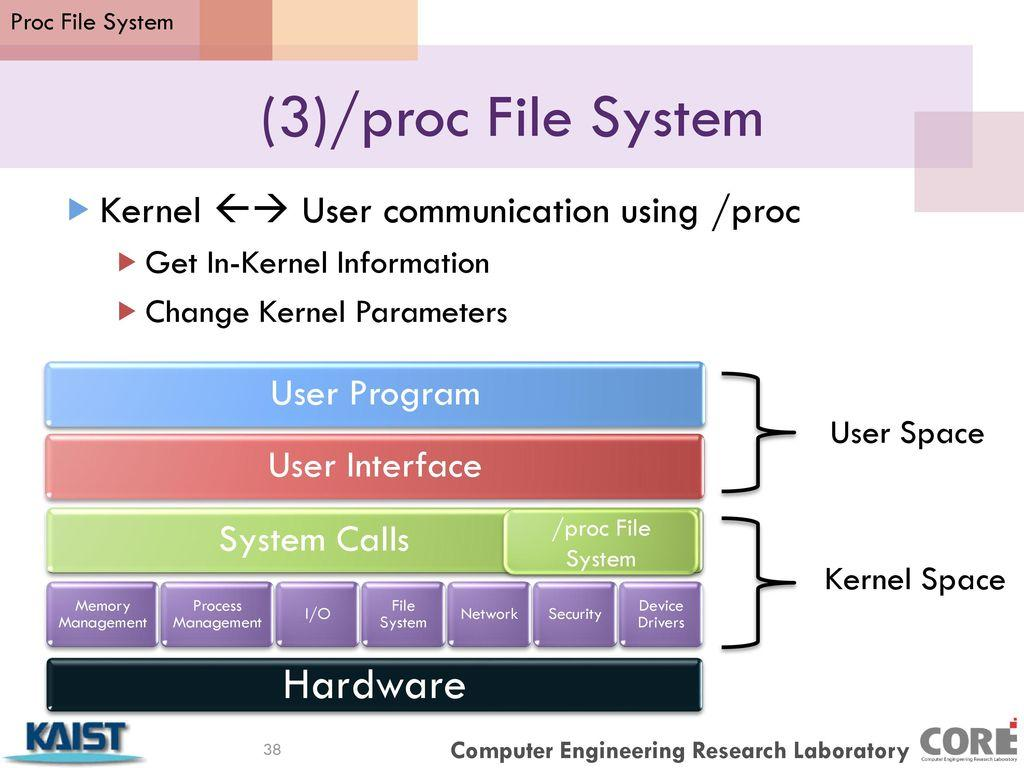
/proc - It is no real directory which is stored in the disk. Every running process gets its own directory .
It is is a virtual filesystem, also known as "profcs" created at the time of boot and stay in the memory. It exist because kernel needs a structured way to expose the runtime process information. It allows tools like top and ps to display system statistics.
/proc/<PID>
Within each [PID] directory, you can find files providing specific data about the process, which includes"
cmdline: It is a command line argument which started the process.environ: Environmental variables defined for the process.fd/: It has links to the file descriptor opened by the process.status: Detailed information about the process, such as its state and memory usage.maps/: Memory mappings.
The /proc filesystem is a tool for understanding and managing Linux systems, serving as a direct window into the kernel's inner workings.
3. /dev — Hardware as Files
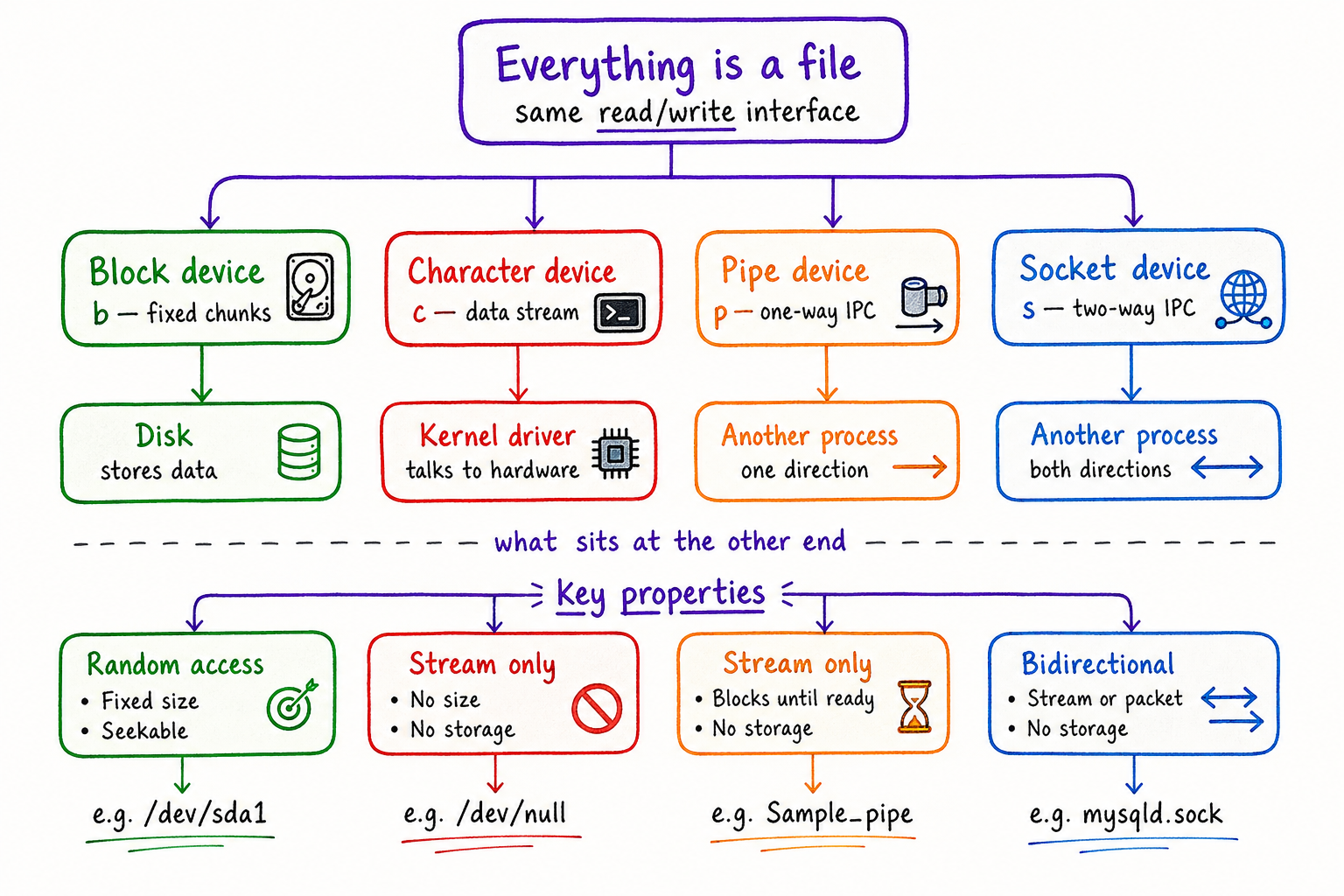
The /dev directory is Linux’s device filesystem. It contains special files called device nodes that act as interfaces between user-space programs and kernel device drivers. Instead of applications talking directly to hardware, they interact with these device files.
Types of Devices
Block Devices (
b): Handle data in fixed-size blocks (e.g., hard disks like/dev/sda).Character Devices (
c): Process data character by character (e.g., serial ports like/dev/ttyUSB0).
Why it exists:
To create a bridge between the Kernel (which manages the drivers) and the User Space (where your apps live).
Common Files or directories
/dev/sda//dev/nvme0n1: Hard drives or SSDs./dev/tty*: Terminal sessions and serial ports./dev/null: A "black hole" device that undo all data written to it./dev/random: Produces high-quality random data.
Interesting Insight:
The /dev directory is actually a virtual filesystem (devtmpfs). It doesn't live on your hard drive; the kernel creates these "files" in your RAM every time you boot up and populates them based on what hardware it detects.
4. /etc/systemd — How Linux Manages Services
The /etc/systemd directory contains configuration files used by systemd, which is the service manager responsible for controlling system startup and background services in modern Linux distributions.
A service in Linux is a program that runs in the background, such as:
web servers
databases
networking tools
SSH servers
schedulers
systemd controls when these services start, stop, restart, and whether they should automatically launch during boot.
The directory exists because Linux needs a central and structured way to manage system behavior and background processes. Instead of hardcoding startup logic into the operating system, Linux uses configuration-based service management through unit files.
Important directories and files include:
/etc/systemd/system/→ Custom or administrator-defined service files.servicefiles → Define how services behave.targetfiles → Represent system states such as multi-user mode
Interesting Insight: I discovered that a simple text-based .service file can fully control how an application behaves in the background, including:
automatic startup
restart policies
dependency ordering
execution permissions
logging behavior
This shows how Linux relies heavily on modular configuration rather than fixed internal behavior.
What problem it solves: Without a service manager, administrators would need to manually start critical programs every time the system boots. systemd automates service startup, monitors failures, and ensures services launch in the correct order.
Example command:
ls /etc/systemd/system
5. /var/log — The Memory of the System
The /var/log directory is the central repository for Linux system logs, serving as the "memory" or "diary" of the operating system by storing plain text files that record events, errors, and activities. It contains critical data for troubleshooting, such as /var/log/syslog (general system logs) and /var/log/auth.log (security/logins).
What the folder does
System Activity: Files like
/var/log/syslog(Ubuntu/Debian) or/var/log/messages(RHEL/CentOS) capture a global stream of system-wide events.Security & Auth: Files like
/var/log/auth.logor/var/log/securetrack every successful and failed login attempt.Hardware/Kernel:
/var/log/kern.logand thedmesgbuffer record driver issues, hardware detections, and kernel-level errors.
Why it exists
It exists to provide a detailed of what happens inside the machine. Without it, system activity would be invisible once it gone. By storing these events in a specific location (/var/log), the OS ensures that developers and administrators have a safe place to look of which application or service is misbehaving.
What problem it solves
Troubleshooting & Debugging: It turns "it's not working" into "Service X failed at 10:02 AM due to a timeout".
Security Auditing: It reveals brute-force attacks by recording repeated failed password attempts from specific IP addresses.
Maintenance: Admins can spot patterns—like a hard drive reporting minor read errors—before the hardware fails completely.
6. /boot — How Linux Starts Before the Operating System Loads
The /boot directory contains the files required to start the Linux operating system. It stores the Linux kernel, bootloader configuration files, and images that are loaded during the early boot process.
When a computer powers on, the operating system is not immediately active. The system first goes through multiple stages:
BIOS/UEFI initializes hardware
The bootloader (commonly GRUB) starts
The Linux kernel loads into memory
The kernel initializes drivers and mounts the root filesystem
systemdor the init process starts system services
The /boot directory exists because the system needs a dedicated location containing the minimal files required to start Linux before the full filesystem becomes available.
Common files inside /boot include:
vmlinuz-*→ Linux kernel imagesinitrd.img-*orinitramfs-*→ Temporary root filesystem used during bootgrub/→ Bootloader configuration files
Interesting Insight:
I discovered that my system stored multiple old kernel versions inside /boot. Linux keeps older kernels as a fallback mechanism so the system can still boot if a newer kernel update becomes unstable or fails.
What problem it solves:
Without /boot, the machine would not know how to locate or load the operating system kernel during startup. It provides the bridge between hardware initialization and the actual operating system.
Example command:
ls /boot
7. Routing Tables — How Linux Decides Where Network Traffic Goes
While DNS helps Linux translate domain names into IP addresses, the routing table decides where network packets should actually travel after that translation happens.
Linux stores routing information inside kernel networking structures, which can be viewed using commands like:
ip route
cat /proc/net/route
The routing table contains rules that determine:
which network interface should send packets
which gateway should forward external traffic
how local and remote networks are reached
One of the most important entries is the default gateway. It acts like the “exit door” of the system, forwarding packets to external networks such as the internet.
Interesting Insight:
During exploration, I noticed that Linux systems may contain multiple routing entries for:
Wi-Fi
Ethernet
Docker virtual networks
VPN tunnels
This showed that Linux networking is entirely rule-based and visible through system-level configuration rather than hidden internally.
Why it exists:
A computer may be connected to multiple networks at the same time. Linux needs a structured mechanism to determine the correct path for every outgoing packet.
What problem it solves: Without routing tables, the system would not know:
whether traffic should stay inside the local network
or be forwarded to another router or gateway
Routing tables allow Linux to efficiently manage communication across different networks while avoiding packet loss and incorrect delivery.
The exploration helped me understand that internet communication is not automatic. Linux continuously makes routing decisions based on kernel-maintained networking rules.
Conclusion
Exploring the Linux filesystem changed how I understand the operating system. I discovered that Linux exposes most of its internal behavior through files and directories, including processes, hardware devices, networking information, logs, and service configurations.
Directories like /proc, /dev, /etc, and /boot showed how Linux manages system activity, hardware communication, startup behavior, and networking internally. I also learned that Linux follows a highly modular and transparent design where administrators can inspect and control almost every part of the system.
This exploration helped me realize that the Linux filesystem is not just a storage structure—it is a direct interface to how the operating system actually works.